
Wix Cookie Consent Custom Solution for Branding and Compliance
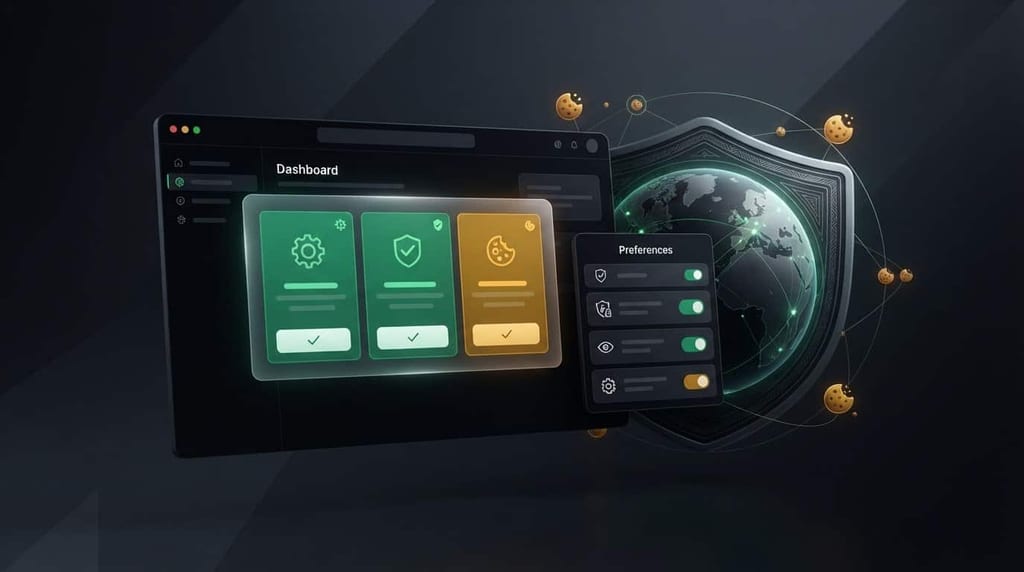
Branding matters, but consent choices matter more. A Wix cookie consent custom solution can match your site’s look and language while giving visitors clear options and a way to manage preferences. Under the EU GDPR, consent for personal data processing must be freely given, specific, informed, and unambiguous. California privacy rules give people the right to opt out of certain data sales or sharing, rather than requiring prior consent for every collection.
That distinction is easy to miss when a banner is treated as a design element instead of a control visitors use. It should make the available choices clear, explain what preferences mean, and let people revisit them. Translate the interface into the languages your audience uses so visitors can understand the choices presented.
This guide explains how to customize branding and language on Wix, organize preference management, and consider GDPR and ePrivacy requirements without confusing design choices with legal compliance. You’ll also learn how your site’s technologies and visitors’ locations shape consent choices, and when a tailored setup can help.
Key Takeaways
- Align your banner’s visual design and language with your Wix site while keeping consent information easy to understand.
- Present consent choices clearly and avoid design that steers visitors toward one option.
- Give visitors a practical way to revisit and change their preferences after their first choice.
- Match your consent approach to the rules that apply to your audience, including GDPR’s opt-in requirement for personal data collection.
- For a managed approach, explore how consent tools, testing, and analytics can support a more consistent setup.
Customizing banner branding, language, and geotargeting
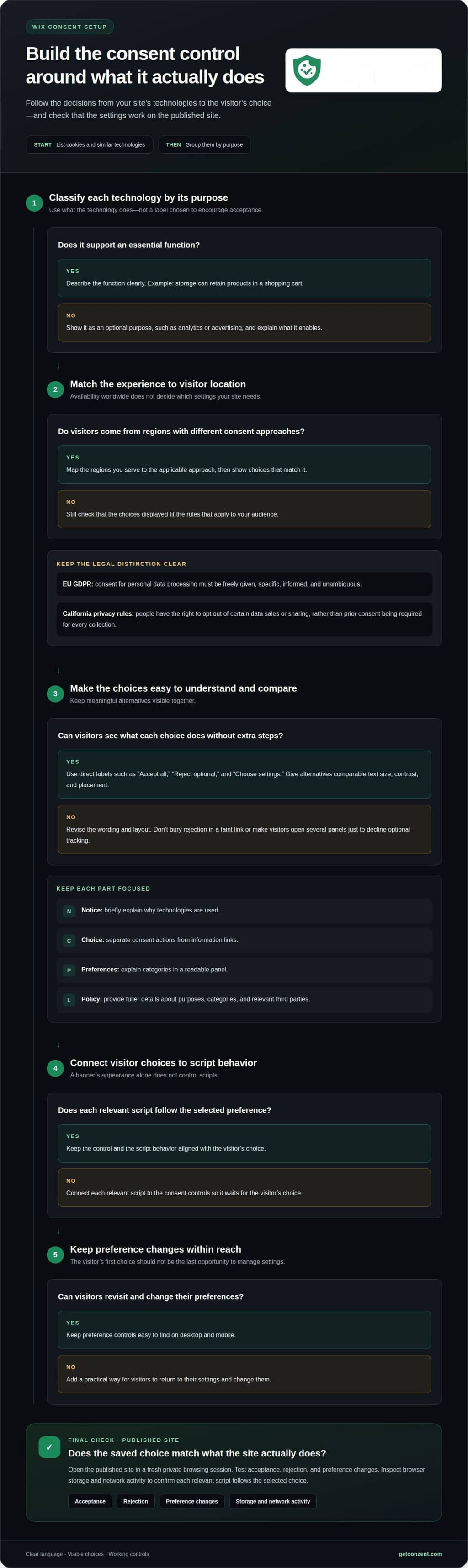
A Wix cookie consent custom solution should feel like part of your website without obscuring the choices visitors need to make. Treat the banner as both a notice and a working control: its design sets expectations, while its settings determine what happens after a visitor responds. Start by listing your site’s cookies and similar technologies, then group them by purpose before choosing colors, wording, and layout.
Brand consistency comes from restrained, functional choices. Match the banner’s typeface, colors, and button style to your Wix site while preserving contrast and readability. For example, use light text on a dark banner and make each button easy to distinguish. Place the notice where it won’t cover key content, and keep preference controls easy to find on desktop and mobile.
Keep the notice and privacy policy connected, but give them different jobs. The banner should briefly explain why technologies are used and present the available choices. The privacy policy can provide fuller details, such as purposes, categories, and relevant third parties. Link to the policy from the notice so visitors can move from a concise explanation to more context without crowding the banner.
Language matters as much as layout. Translate consent interface content into the languages your visitors understand, rather than relying on a single default. Use consistent translations for button labels, category names, and preference descriptions. Review each version in its actual layout: a longer translated label may wrap, obscure another control, or make a button harder to distinguish.
Geotargeting means showing consent experiences according to a visitor’s location. A site serving an international audience may need different notices or choices for different jurisdictions. The app is available worldwide, but availability alone doesn’t determine which settings your site needs. Map the regions your business serves to the applicable consent approach, then ensure the displayed choices match that approach.
- Notice: Give a short, direct explanation of the data uses.
- Choice: Separate consent actions from links to more information.
- Preferences: Provide category details in a clear, readable panel.
- Policy: Connect the banner to the relevant privacy information.
What are the costs of Wix cookie consent apps and custom solutions? Costs depend on the required features, integrations, and level of ongoing management; a specific price follows a quote request. Compare the actual scope, not just the banner’s appearance.
Can Wix custom cookie consent block scripts until users agree? Yes, but the banner alone doesn’t block scripts. Each relevant script must be connected to the consent controls so it waits for the visitor’s choice.
How do you test and troubleshoot cookie consent on a Wix website? Open the published site in a fresh private browsing session, then test acceptance, rejection, and preference changes. Inspect browser storage and network activity to confirm that each relevant script follows the selected choice. If it doesn’t, check how the script is connected to the consent settings.
For Wix-specific implementation context, review the Wix consent integration alongside your site’s scripts and banner behavior. A design is complete only when its language, regional display, and actual consent controls work together.
Clear consent choices and avoiding manipulative design
Consent controls work only when visitors can understand and use them. On a Wix site, use plain-language actions such as “Accept all,” “Reject optional,” and “Choose settings.” Each label should describe what happens after a click. “Continue” is less informative because it doesn’t tell visitors whether optional technologies will run.
Keep the main choices visible together. If “Accept all” appears as a bright button, don’t hide “Reject optional” as a faint text link below the banner. Visitors shouldn’t have to open several panels just to decline optional tracking. Use comparable text size, contrast, and placement for actions that represent meaningful alternatives.
Separate essential functions from optional purposes. For example, explain that a shopping cart uses storage to retain selected products, while analytics helps measure site use. Don’t label every category “necessary” to encourage acceptance. Category names should reflect what the technologies actually do, and descriptions should explain their effects without technical shorthand.
A preference panel can give visitors more control than a single all-or-nothing choice. List purposes separately, such as analytics and advertising, and describe each in a sentence. If a visitor turns off analytics, the control should clearly reflect that choice. Avoid preselecting optional categories or wording that makes refusal sound like a mistake.
- Use direct labels: “Reject optional” is clearer than “Manage.”
- Show consequences: Explain what each category enables.
- Keep choices visible: Don’t bury refusal behind extra screens.
- Match controls to behavior: A disabled category shouldn’t still activate its scripts.
Check the banner on desktop and mobile. A narrow phone screen can push a refusal control below the fold or make buttons appear uneven. Test the first view, expanded settings panel, and saved state. Use a fresh browser session for each test, then verify that the displayed choice matches the preference stored by the site.
Design experiments should measure clarity, not pressure. Consent A/B testing can compare neutral wording or layouts, such as a compact notice against a more detailed one. Keep the choices equivalent in both versions. A higher acceptance rate alone doesn’t show that visitors understood their options.
If you’re assessing the setup behind these controls, compare consent platform options against your site’s required features and integrations.
Consent withdrawal and preference changes
A visitor’s first choice shouldn’t become permanent just because the banner disappeared. Add a persistent “Privacy settings” control to the Wix site, such as a footer link, so visitors can reopen the preference panel. Keep it available across pages, not just on the homepage. Returning visitors can then change a category without clearing every browser setting.
Withdrawal needs to change what the site does, not merely update a label. If someone turns off analytics after previously allowing it, the consent state should update and prevent related tracking scripts from running afterward. If a script continues firing, the interface and the site’s behavior disagree. Review each category’s connection to the scripts and integrations it governs.
Make each preference understandable when visitors return. A panel could show “Analytics: on” with a clear control to switch it off. Explain the category’s purpose beside the control, so visitors don’t have to remember the original notice. Avoid vague labels like “Other” when a specific purpose, such as audience measurement, describes the setting more clearly.
- Reopen: Provide a persistent privacy-settings link in the site footer.
- Change: Let visitors update individual categories, not only accept everything.
- Apply: Ensure the site’s scripts respond to the updated preference.
- Confirm: Show the saved state when the panel opens again.
Test the full change, not just the control’s appearance. In a fresh browser session, allow analytics, open another Wix page, then return to privacy settings and turn analytics off. Reload the page and inspect browser activity to see whether the related script still runs. Repeat the check for each optional category configured on the site.
Consider what happens when someone changes preferences in another tab. If the site stores consent in browser storage, test whether the second tab reflects the updated state after refresh or when the panel is reopened. Also test a return visit after closing and reopening the browser. These checks reveal mismatches between saved preferences, visible controls, and script behavior.
Keep the interaction direct. After saving a change, show a short confirmation such as “Your preferences have been updated.” Don’t let the message obscure which settings changed. If a visitor switches off one category, retain their other choices and display them accurately the next time they open the panel.
Document the expected behavior for each category in your Wix setup. A simple record can name the category, the related script, and what should happen when consent is withdrawn. This gives whoever maintains the site a practical reference when adding an analytics tool, changing an integration, or troubleshooting a preference that doesn’t take effect.
GDPR and ePrivacy Directive compliance
Cookie compliance depends on visitors’ locations and what your Wix site collects. Rules differ across the United States, California, and the EU, so one banner setting may not fit every audience.
Compliance considerations
Compliance means matching consent choices and tracking behavior to the rules that apply to your site. The European Union states that GDPR compliance requires opt-in consent for personal data collection. The ePrivacy Directive also matters when assessing cookie use in the EU. For a Wix site, map each tracking purpose to its script, then align the notice and controls with the relevant audience.
For California visitors protected by CCPA, provide an opt-out option; data collection can take place without explicit prior consent. That differs from the EU GDPR opt-in requirement. A site serving both audiences should avoid treating one response as universal. Geotargeting can present the appropriate experience, while the underlying scripts must follow the visitor’s choice.
For visitors in other parts of the United States, applicable requirements depend on the laws relevant to the audience and the site’s data practices. Don’t infer a single nationwide consent rule from a visitor’s location alone. List the places your site serves, identify the applicable approach for each, and document which banner choices and scripts implement it.
Risks of custom solutions
A custom Wix consent solution is a banner and preference system built or configured for a particular site. Its main risk is a gap between what the interface promises and what scripts actually do. For example, a visitor might reject analytics while an added tracking tag still loads. That mismatch can undermine the consent experience and create compliance risk.
Other risks arise as a Wix site changes. Adding an analytics tool, updating a tag, or changing a banner can leave a new script outside the consent controls. A translation may also alter a button’s meaning or obscure a choice. Keep an inventory of scripts, purposes, and settings, then test each relevant visitor choice after changes.
Review the complete flow, not just the banner. In a clean browser session, test the experience for an EU visitor and a California visitor. Confirm that the displayed choices match the relevant approach, then inspect whether each script behaves accordingly. Repeat after adding integrations or changing settings. A polished design cannot correct a script that ignores a saved preference.
An app may describe support for cookie consent requirements associated with GDPR, RGPD, CCPA, PIPEDA, APPI, LGPD, APA, NZPA, and US laws. Treat that description as a starting point for evaluation, rather than as confirmation that every Wix configuration or script is covered. Check that the consent choices available in the app correspond to the purposes and tracking tools on your site, and verify that saved preferences affect those tools as intended. Revisit the configuration when you add or change integrations. The practical question is whether the behavior of your own site matches the choices presented to each visitor; a broad statement of support alone does not establish that outcome.
How to create a custom cookie consent banner on Wix?
Build the consent system around your site’s actual tracking, not a generic banner template. A Wix cookie consent custom solution needs clear visitor choices, working script controls, and a reliable way to retain preferences. Treat setup as a connected process, from inventory through testing.
- Inventory site technologies. List each cookie, pixel, analytics tag, and embedded service used on your Wix site. Record its purpose and the page or feature that activates it. For example, identify whether an analytics tag loads sitewide or only on a particular page. This inventory helps connect each choice to the technology it controls.
- Group by purpose. Sort technologies into useful categories, such as essential functions, analytics, and advertising. Describe each category in plain language. Don’t classify a tool by its name alone; consider what data it collects and why the site uses it.
- Plan the banner and settings panel. Write a short notice, clear action labels, and concise category descriptions. Make acceptance, rejection, and preference controls easy to distinguish. Keep the banner readable on mobile and desktop, and connect the notice to your privacy policy.
- Connect consent to scripts. Configure the consent mechanism so optional scripts follow the visitor’s selected preferences. A banner that only records a button click doesn’t control tracking. Review Wix integrations, custom code, and embedded tools to identify every place a script might load.
- Set up preference access. Add a persistent privacy-settings control, such as a footer link. Visitors should be able to reopen the panel and change category choices after their first visit. Confirm that saved preferences display accurately when the panel opens again.
- Test the published site. Use a fresh private browser session to test acceptance, rejection, and category-level choices. Visit pages that use different integrations, then inspect browser storage and network activity. If an optional script runs after rejection, check its connection to the consent controls before publishing changes.
Keep a record of each technology, its purpose, and its expected behavior. When you add a Wix app or change a tag, update the inventory and repeat the relevant tests. This makes future maintenance a repeatable review instead of guesswork.
If you’re comparing managed consent tools for this workflow, review consent platform options alongside your integration and control requirements.
Conzent: Managed Cloud Consent Platform
Conzent’s Managed Cloud Consent Platform helps Wix site owners manage consent choices through a centralized setup. It fits when coordinating banner settings, preference controls, and site integrations manually becomes difficult.
Use it alongside your Wix setup to support customizable consent banners and connect consent choices with tools such as Google Consent Mode v2. Consent A/B Testing can help compare banner variations, while Revenue Impact Analytics can help assess how consent experiences relate to business outcomes. These tools support measurement and configuration, not legal representation or a substitute for reviewing the rules that apply to your site.
If you need a different hosting model, Conzent also offers Self-Hosted Open Consent Infrastructure. Choose an approach based on your operational needs and how you want to manage consent infrastructure. Contact Conzent to discuss the options for your Wix site.
Make consent part of your next site update
A Wix cookie consent custom solution should evolve with your site, not sit untouched after launch. Each new analytics tag, embedded service, or change to your audience can affect how consent choices work. Build a short review into your Wix publishing process: check the scripts, preferences, and visitor experience whenever the site changes.
That habit keeps privacy controls connected to the live site, rather than an old snapshot of it. It also gives your team a clear point to revisit when a new feature or market changes how visitors interact with Wix. Start with the area that needs the most attention, whether implementation, hosting, or testing.
Discuss your consent needs with Conzent and explore an approach for your Wix site. Clear choices and working controls are practical foundations for a more respectful web experience. Your next update can move them forward.
Frequently Asked Questions
How to add a third-party cookie consent platform to Wix?
Add the platform through a Wix integration or install its supplied script using Wix’s custom code settings. For a Wix cookie consent custom solution, first connect the banner to your site’s tracking tools, then test the published site rather than relying on the editor preview. Check that consent choices persist across pages and that embedded services, such as video, follow the visitor’s preference.