
How to Set Up a BigCommerce Cookie Policy for Your Store

A cookie banner is not a privacy policy. A practical BigCommerce cookie policy setup pairs a banner that lets shoppers accept, reject, or manage cookie preferences with a published policy explaining what data you collect and how you share it. The banner should also ensure tracking tags follow each shopper’s consent choice.
It’s easy to focus on how the banner looks, but clear choices and accurate information matter more than a polished pop-up. Your store also needs to explain its use of cookies and account for privacy rules that may apply to shoppers in different regions. This guide covers the setup, from reviewing cookies and configuring a consent banner to publishing your policy and describing data sharing with partners and service providers. You’ll also learn how to test the experience so the banner, policy, and tracking behavior work together.
Key Takeaways
- Configure a consent banner that lets shoppers accept, reject, or manage cookie preferences, and align tracking tags with their choices.
- Review the privacy requirements relevant to your shoppers’ regions and explain your store’s cookie use in a clear, accessible policy.
- Describe what personal data you share with partners and service providers, and explain why each category receives it.
- Publish the policy as a dedicated store page, then check that shoppers can find it and that the banner behaves as intended.
- Consider a managed or self-hosted consent platform when you need support for banner configuration, testing, or consent analytics.
Creating a banner with a consent management platform
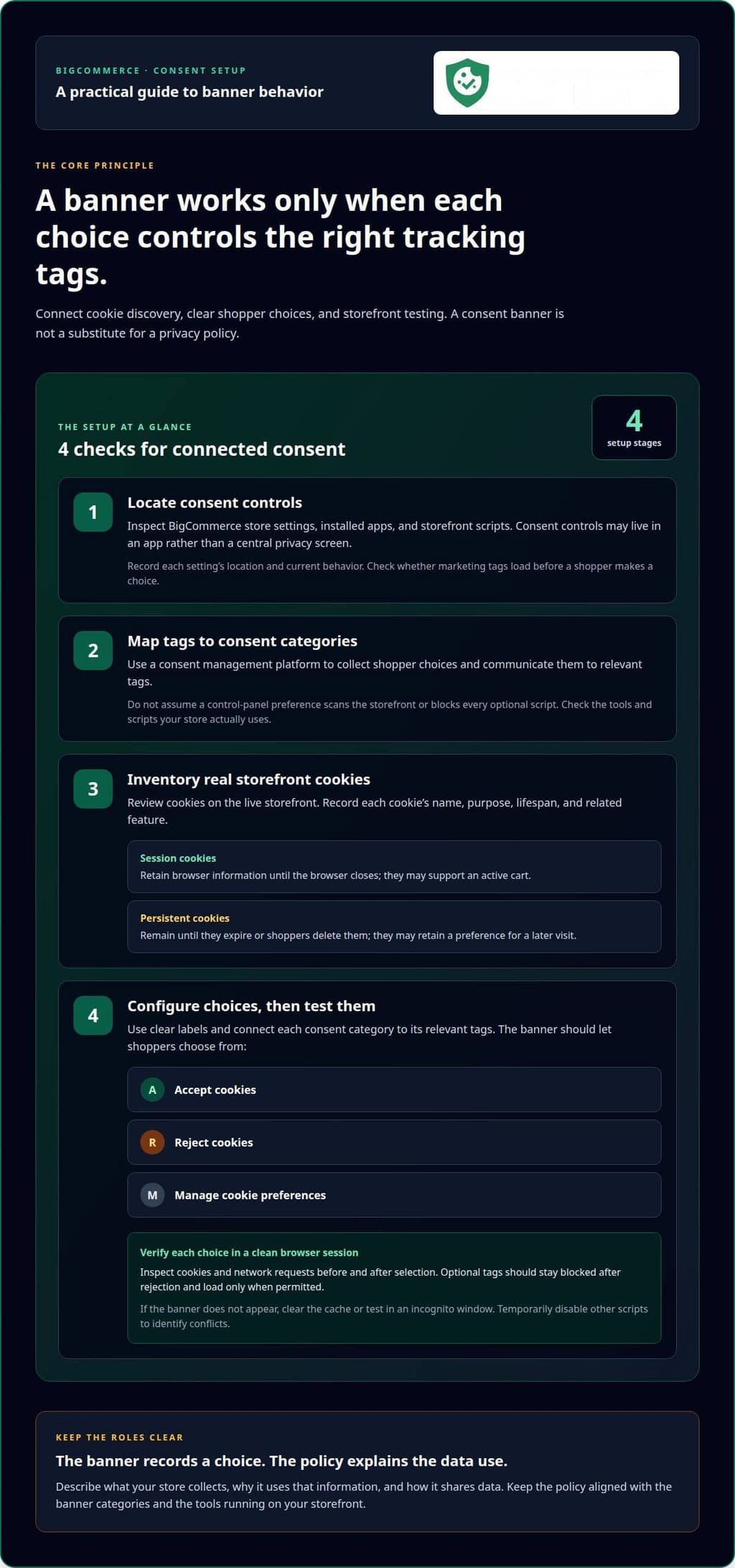
Treat consent as a connected process: identify cookies, present clear choices, and test what each choice allows. A sound BigCommerce cookie policy setup links the banner to your storefront’s tracking scripts.
-
Locate Cookie Consent and Privacy Settings
Open the BigCommerce control panel and inspect your store settings, installed apps, and storefront scripts. Consent controls may sit in an app rather than a central privacy screen. Check what each setting does before changing it. Record its location and current behavior so you can trace the effect during testing.
Review the live storefront as well. A marketing tag added through an app or theme may behave differently from a store preference. For example, note whether a tag loads before a shopper makes a choice, then compare its behavior with your consent tool’s settings.
-
Check Built-In Consent and Cookie Scanning
Keep store administration separate from consent management. Use a consent management platform to collect shopper choices and communicate them to relevant tags. Don’t assume a control-panel preference scans your storefront or blocks every optional script. Inspect the tools and scripts your BigCommerce store actually uses.
Google recommends using a consent management platform or working with a content management system to collect website-user consent and send it to Google. Map each tag to a consent category, then test whether it follows the shopper’s selection.
-
Review Default Cookies and Their Uses
Inspect cookies on your live storefront rather than relying on a generic default-cookie list. Store behavior can vary depending on installed apps and storefront scripts. Ecommerce cookies can support customer log-in, identification, and shopping features. Session cookies retain browser information until the browser closes; persistent cookies remain until they expire or shoppers delete them.
Record each cookie’s name, purpose, lifespan, and related feature. For example, a session cookie may support an active cart, while a persistent cookie may retain a preference for a later visit. Classify cookies by function rather than assuming every cookie is optional.
-
Create and Test the Consent Banner
Configure the banner to let shoppers accept, reject, or manage cookie preferences. Use clear labels and connect each consent category to its relevant tags. This is central to a practical BigCommerce cookie policy setup: the choices shown must control the scripts associated with them.
Test each choice in a clean browser session. Inspect cookies and network requests before and after selection. Confirm optional tags stay blocked after rejection and load only when permitted. If the banner does not appear, clear the cache or test in an incognito window. Temporarily disable other scripts to identify conflicts.
Privacy policies and regional requirements
Build your privacy policy around the information your store collects, how it uses that information, and the regions where shoppers live. Then align the policy with your consent choices and data practices.
- Map the regions your store serves. Identify where customers browse and buy, then consider which privacy rules may apply. The European Union’s GDPR and the California Legislature’s CCPA are relevant to cookie banners on BigCommerce stores. Regional review belongs in policy planning, not just in a final wording change.
Use your customer markets to guide the review. A store serving shoppers in California and the European Union should account for both frameworks rather than assuming one banner setting covers every audience. Keep the policy clear across regions, and explain any region-specific choices to the shoppers who see them.
- Describe your store’s data practices. List the information collected through cookies and related technologies, why your store uses it, and which functions rely on it. For example, distinguish cookies that support a shopping cart from those used for analytics or advertising. Match each explanation to the tools actually running on your storefront.
Use plain language and consistent terms. If the banner calls a category “analytics,” explain what that category means for your store in the policy. Avoid broad statements that blur essential store functions with optional tracking. Review the policy whenever you add an app, tag, or service that changes how information is collected or used.
- Explain choices and rights without overpromising. State what shoppers can do through the banner, how they can revisit their preferences, and how they can raise privacy questions. The CCPA provides certain rights to California consumers. Explain how your store handles relevant requests, and keep that explanation consistent with the ways shoppers can contact your business.
Describe consent accurately. A banner records a choice; it does not replace a clear explanation of data use. Where consent must be recorded, retain a record that connects the choice to its consent categories and relevant tags. Keep the record aligned with the banner’s current options.
- Review and maintain the published policy. Compare it with your cookie inventory, banner categories, and current storefront integrations. Update it when a new service changes what data your store collects, receives, or shares. Test the policy from the regions your settings target, especially if geolocation controls determine which consent options shoppers see.
Assign a store owner to review changes and document updates. If comparing implementation models, review consent platform pricing alongside your needs for hosting, integrations, and configuration. Costs depend on project scope and are provided after a quote request.
Personal data sharing with partners and service providers
Map each data flow before describing it to shoppers. A clear account names the recipient, the information shared, and the service it supports.
- List every partner and service provider. Review the tools connected to your BigCommerce store, including payment processing, analytics, advertising, shipping, customer support, and email services. Use your app list, integrations, and storefront scripts to identify who receives information. A tool that sets a cookie may send information to a provider even if shoppers never interact with that provider directly.
Record each recipient’s role in your store’s operations. For example, a shipping service may receive order and delivery details, while an analytics service may receive browsing events. Tie the inventory to actual integrations, not a generic list copied from another store.
- Trace the information each recipient receives. Note whether a service receives contact details, order information, device or browser data, cookie identifiers, or activity such as product views. Identify where the information is collected and why it is transferred. A checkout integration and an advertising tag can both receive data, but for different purposes.
Follow a realistic shopper journey: a visitor views a product, adds it to a cart, and places an order. Record which tools receive information at each stage, including events sent through tags. This trace can reveal data sharing that an app description alone may not make obvious.
- Explain each data flow in the privacy policy. Group recipients by function, then describe the information shared and what each service does with it. For example, explain that an order-related provider supports delivery, while an analytics tool measures storefront activity. Name services where that helps shoppers recognize them, and avoid vague phrases such as “trusted partners” without context.
Commerce says shoppers should contact merchants directly about their personal data because merchants act as controllers and businesses for that data. Make your store’s contact route easy to find, and explain how shoppers can raise a question about a specific service or transaction.
- Keep disclosures aligned with your live store. Compare the policy with installed apps, tags, and service settings whenever you add or remove an integration. If you add an email platform, for example, update the data-flow record and policy to reflect its role. Remove descriptions of services no longer connected.
Then test the storefront and review the information each integration sends. Keep the inventory, policy, and consent categories consistent. That way, a shopper reading about analytics or advertising can connect the disclosure to the choices and tools used on your BigCommerce store.
Where are cookie consent and privacy settings in the BigCommerce control panel?
- Start with the control-panel navigation. Sign in to BigCommerce and inspect the store settings, installed apps, and storefront configuration available to your account. Cookie consent may be managed through an app or an added storefront script, rather than a central privacy screen. Check the name and purpose of each relevant setting before changing it.
Search for labels related to privacy, cookies, tracking, scripts, or consent. If you installed a consent tool, open its app settings from the control panel and look for banner behavior, preference categories, and regional display controls. Record where each setting is so another store administrator can find it later.
- Separate store privacy controls from consent tools. Review BigCommerce’s store-level privacy settings for options related to customer information and data requests. Then inspect your consent app or storefront scripts for banner configuration and cookie controls. These functions may sit in different parts of the setup, so changing one does not necessarily update the other.
For example, a store setting may relate to customer data handling, while an app setting controls whether an analytics tag runs before consent. Check what each control changes. Don’t treat a privacy-policy link, customer data setting, or banner design option as proof that optional tracking is blocked.
- Trace installed apps and scripts. List the BigCommerce apps that add analytics, advertising, chat, or marketing functions. Open each app’s configuration and identify where it manages tracking or adds storefront code. Also review custom scripts your team has added, since they may not appear in your consent app’s settings.
Use a product-page visit as a test case. Note which tools load before a shopper selects a banner option, then compare their behavior after the choice. If an analytics script runs independently, adjust its configuration so the consent mechanism can control it. Record the app name and setting location in your implementation notes.
- Confirm the settings on the live storefront. Save your changes, open the store in a clean browser session, and test the banner on product, cart, and checkout pages. Check that the banner appears as intended and that each choice changes the relevant tracking behavior. A control-panel setting is useful only if the published storefront reflects it.
If a banner is missing, clear the browser cache or test in an incognito window. Temporarily disable other scripts to isolate conflicts. Return to the control panel and review the app or script setting for the affected page. This helps pinpoint whether the issue is in the banner configuration, an integration, or storefront code.
How do you add a cookie policy page to a BigCommerce store?
- Draft the page from your live data practices. Before opening BigCommerce’s page editor, gather your cookie inventory, consent categories, storefront apps, and tracking tools. Use those records to explain what each cookie category does and why your store uses it. For example, distinguish a cookie that supports a shopping cart from a tag used for advertising.
Keep the cookie explanation distinct from general privacy information. A privacy policy may cover broader data practices, while a cookie page focuses on cookies and similar technologies. If your privacy policy already has a detailed cookie section, consider whether a separate page would make the information easier to find.
- Create a dedicated page in BigCommerce. Sign in to the control panel and open the area for managing storefront web pages. Choose the option to add a page, then give it a clear title such as “Cookie Policy.” Use a readable page address and a concise introduction so shoppers can identify its purpose before reading the details.
Organize the content under descriptive headings. Explain cookie categories, their purposes, and how shoppers can manage preferences through your banner. Don’t describe tools your store no longer uses. Naming an old analytics app can confuse shoppers and contradict the live storefront.
- Publish and connect the page to store navigation. Save the page and use BigCommerce’s storefront navigation controls to make it accessible. A footer link is a practical place for “Cookie Policy,” because shoppers can find it across store pages. If your privacy policy already appears in the footer, add the cookie page alongside it rather than replacing the existing link.
Preview the published page on desktop and mobile. Follow the link from a product page and the footer to confirm it opens correctly. Check headings, spacing, and preference-management instructions. A page that exists in the control panel but remains unpublished or hard to find does little for shoppers.
- Check the page against the consent experience. Compare the published wording with your banner categories and current storefront behavior. If the banner calls a category “Analytics,” use the same label on the policy page. Test preference links and confirm the page doesn’t promise controls the banner lacks.
Update the page when an app, tag, or cookie purpose changes. Keep a simple change record that notes what changed and which page content you revised. If you’re evaluating consent platform options for the storefront, explore the available platform options as part of your setup planning.
Use a clear naming convention for tracking events, and make tags follow the shopper’s consent status. Check product views, add-to-cart actions, checkout starts, purchases, UTM capture, and tax, shipping, discounts, and currency handling.
Conzent: Managed Cloud Consent Platform
Conzent’s Managed Cloud Consent Platform helps BigCommerce stores manage consent banners and shopper preferences. It’s a practical next step when your store needs a dedicated consent workflow alongside its policy and storefront settings.
Choose an approach that fits your operating needs. The Managed Cloud Consent Platform provides a managed option, while Self-Hosted Open Consent Infrastructure is for stores that prefer to host their consent infrastructure themselves. Consent A/B Testing can help compare banner variations, and Revenue Impact Analytics shows how consent choices relate to revenue outcomes.
These tools support consent management and measurement, but they don’t replace clear privacy disclosures or your store’s responsibility to explain its data practices. Explore Conzent’s platform to find the right fit for your BigCommerce consent setup.
Keep consent aligned as your store evolves
A cookie policy can become outdated as your storefront changes. Treat your BigCommerce cookie policy setup as an ongoing operating practice, not a one-time publishing task. When your team adds an app, changes a tracking tag, or adjusts a banner, review whether the policy and shopper experience still match.
Assign someone responsibility for these reviews and record meaningful changes. A simple internal note can capture what changed, which storefront features it affects, and whether the published information needs updating. This creates a clear handoff when store management or marketing responsibilities shift and helps keep future improvements grounded in how your store actually works.
If you’re ready to explore consent management options for your store, contact Conzent about cookie consent. A thoughtful next step can make ongoing consent work easier to manage. Your shoppers deserve a clear experience, and you can keep building toward one.
Frequently Asked Questions
Which BigCommerce cookie consent apps support GDPR and CCPA?
Choose a BigCommerce-compatible consent app with cookie categories, regional banner controls, and tag integrations. Conzent’s consent platform supports GDPR, ePrivacy, and CCPA/CPRA, with IAB TCF v2.4 integration. Compare an app’s controls with the scripts and integrations active in your storefront. Then test the banner and tag behavior in a clean browser session from relevant shopper locations, rather than relying on an app’s stated coverage alone.
What are the cookie consent requirements under GDPR, UK GDPR, and ePrivacy rules?
GDPR and CCPA are relevant to cookie banners, according to the European Union and California Legislature. For a practical setup, inventory cookies, explain their purposes, and offer clear options to accept, reject, or manage preferences. Apply consent settings based on the regions your store serves, and keep the banner, policy, and tracking behavior aligned. Treat UK GDPR and ePrivacy as distinct frameworks in your regional review, not interchangeable labels.
How do you block analytics and advertising cookies until a visitor gives consent on BigCommerce?
Configure your consent tool to keep optional analytics and advertising tags from firing before the shopper grants the relevant permission. Map each tag to its category, such as assigning an analytics tag to analytics and an advertising pixel to advertising. Review app settings and custom storefront scripts, since either may load tags independently. Test in a fresh session: reject, inspect browser storage and network requests, then accept and test again.
What are the risks of using an incomplete cookie policy or consent setup on BigCommerce?
An incomplete setup can leave shoppers unclear about what data you collect and share, while tracking tags may run without following their consent choices. It can also leave the policy out of step with your actual storefront tools or relevant regional requirements.